
How to Block an IP Address to Deny Access to Your Website

You can blacklist an IP Address to deny access to your website.


1. Log in to your cPanel account.


2. In the Security section, click on IP Blocker.


3. Under the Add an IP or Range, you should enter the IP Address you want to block.
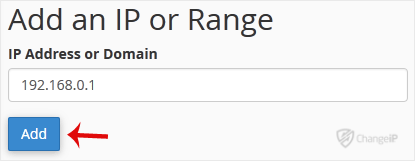

4. Click on Add.


Here is Example:
Single IP Address: 192.168.0.1
Range: 192.168.0.1-192.168.0.40
Implied Range: 192.168.0.1-40
CIDR Format: 192.168.0.1/32
Implies 10.*.*.* -- 192.

  • 0 Users Found This Useful
Was this answer helpful?

Related Articles

How to Enable the Two-Factor Authentication on Your cPanel Account

Security is important for our data safety. We recommend you to enable the Two-Factor...

How to Disable the Two-Factor Authentication on Your cPanel Account

Follow this instruction to remove two-factor authentication from your cPanel account.1. Log in to...

How to Enable or Disable Mod Security in cPanel

Are you facing the issue of IP getting blocked repeatedly? If the answer is Yes, then it may have...

How to Protect Website Images From Being Displayed at an External Website

External websites may display your website images on their websites, thus stealing your...

How to Password Protect a Directory in cPanel

You can protect a directory with a password using the cPanel's Directory Privacy. 1. Log in to...